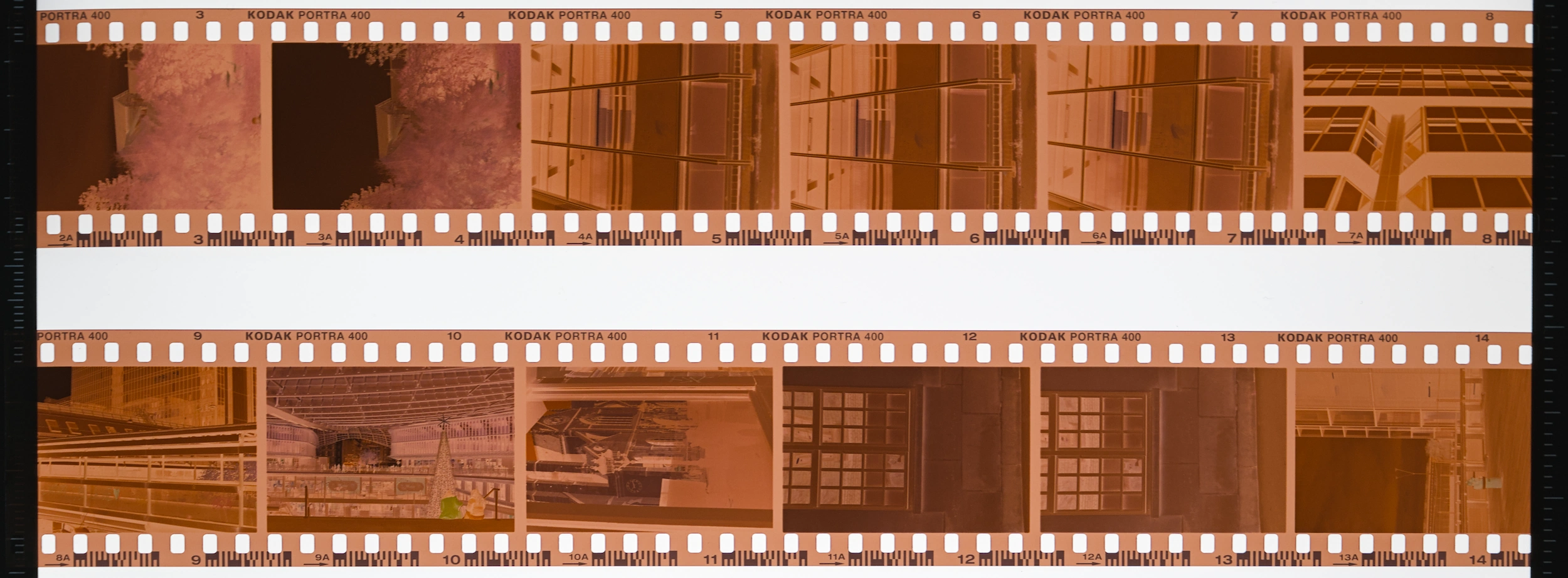
When I began to experiment with film photography around 2015, my options for converting my negatives to an actual photograph were limited. I mostly printed in the darkroom, usually on a small 10x15cm sheet of paper, before scanning the print itself. At the time, my only tool was the family’s multipurpose HP printer, and the results were far from satisfactory. But I was just beginning, and the quality of those results didn’t matter as much as the ability to get any results at all.
A few years later, I moved on to an Epson V700 with a somewhat foggy lens. Results were better, especially after I switched from Epson Scan and Silverfast to the fantastic VueScan. With Epson Scan and Silverfast, I was getting positives, with VueScan I was able to get negatives and do the inversion myself. That’s when a whole new world opened for me: inverting a piece of colour film is difficult.
The main difficulty lies in neutralising the orange mask. Once inverted, it usually produces a strong blue-cyan cast which can be tricky to remove. This is made even more difficult by an inherent limitation of consumer-grade light tables. For the most part, they use broad-band LEDs, instead of narrow-band ones. To put it simply, rather than using an array of red, green and blue LEDs, those light tables use white LEDs which emit light in most of the visible spectrum. To our eyes the light appears (mostly) white, but for a camera’s sensor it means possible interference and colour shifts.
As I do not own a professional-grade light table, I learnt to make do with these limitations. The good news is: it is absolutely possible to get very good results with a reasonable set-up.
Mine is:
- Fujifilm X-T3
- Nikon EL-Nikkor 50mm f/2.8
- Viltrox extension tubes
- K&F Concept M39 adapter
- Kaiser Slimlite
- A cheap bubble level
- Some cardboard cutouts for the film holder
The lens is important: it is an enlarger lens, with an almost perfect sharpness from edge to edge, a flat field of view, and virtually no vignetting. It’s also a vintage lens, so while it is definitely sharp at f/8, I assume modern macro lenses must be sharper. Nevertheless, it produces beautiful images and I was able to get mine for about 50€, which makes it pretty affordable.
This tutorial won’t cover the scanning in itself, but it’s pretty straightforward: take a macro photo of your negative over the light table (make sure it doesn’t touch the light table’s surface, otherwise you might get Newton’s rings), then hop on to Darktable.
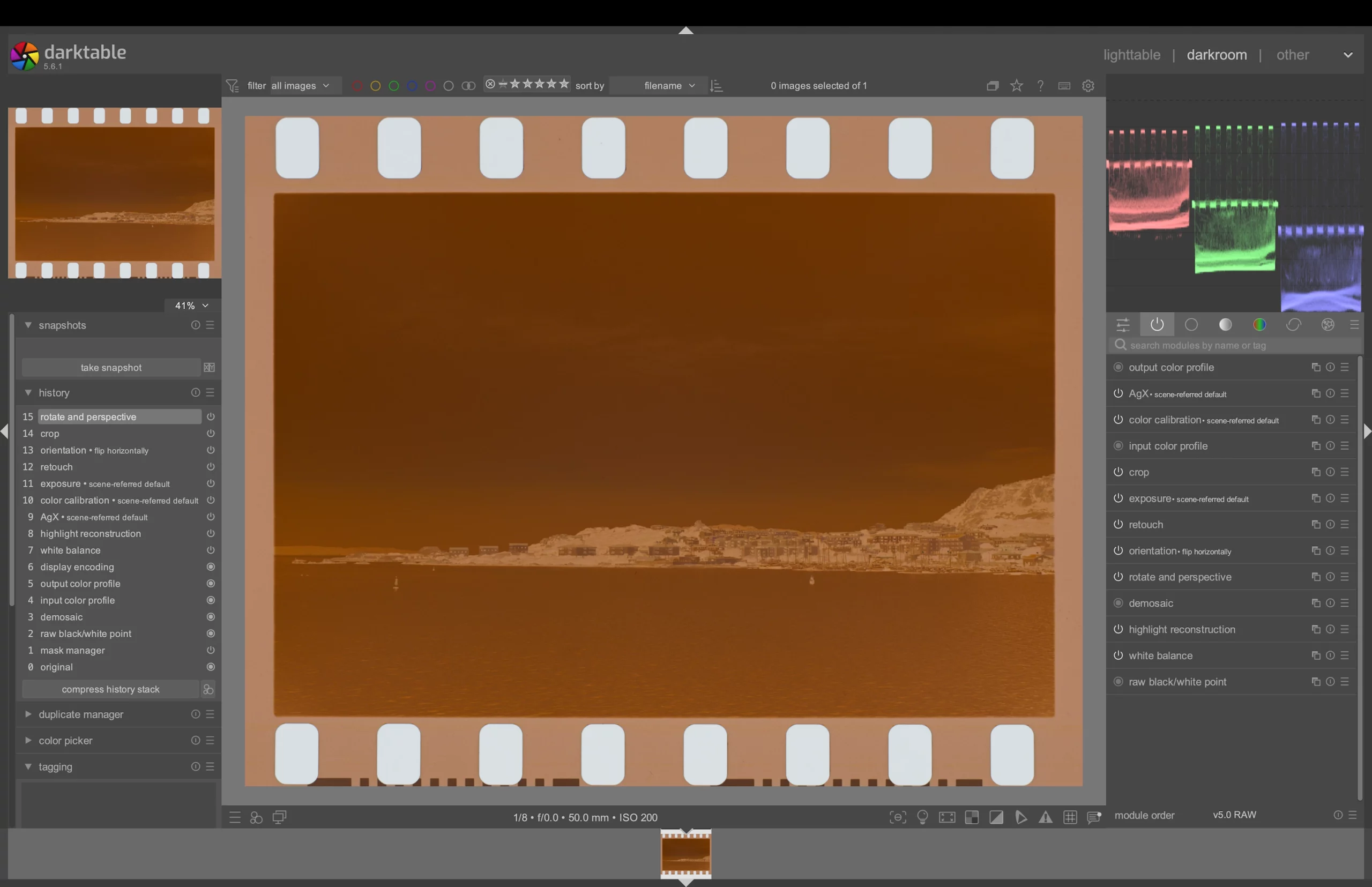
My process is usually this: first to invert the film with the Negadoctor module, and use it to do a quick colour correction. The results are usually good enough by averaging the whole image for both the shadows and the highlights, but if you get unsatisfactory results, try to find a grey or white spot in your image to use as a reference instead.
After inverting and applying the colour correction, I get this:
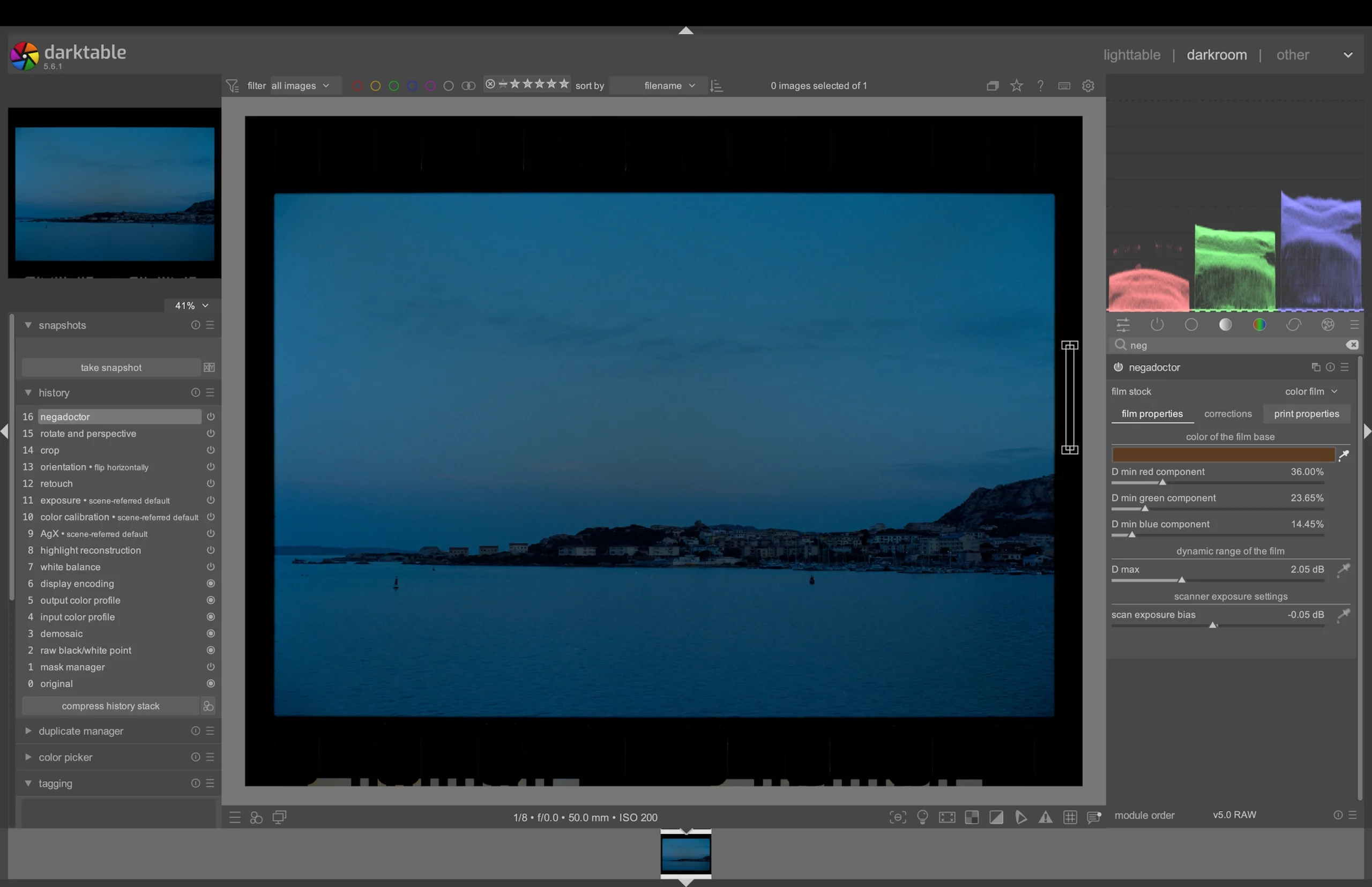
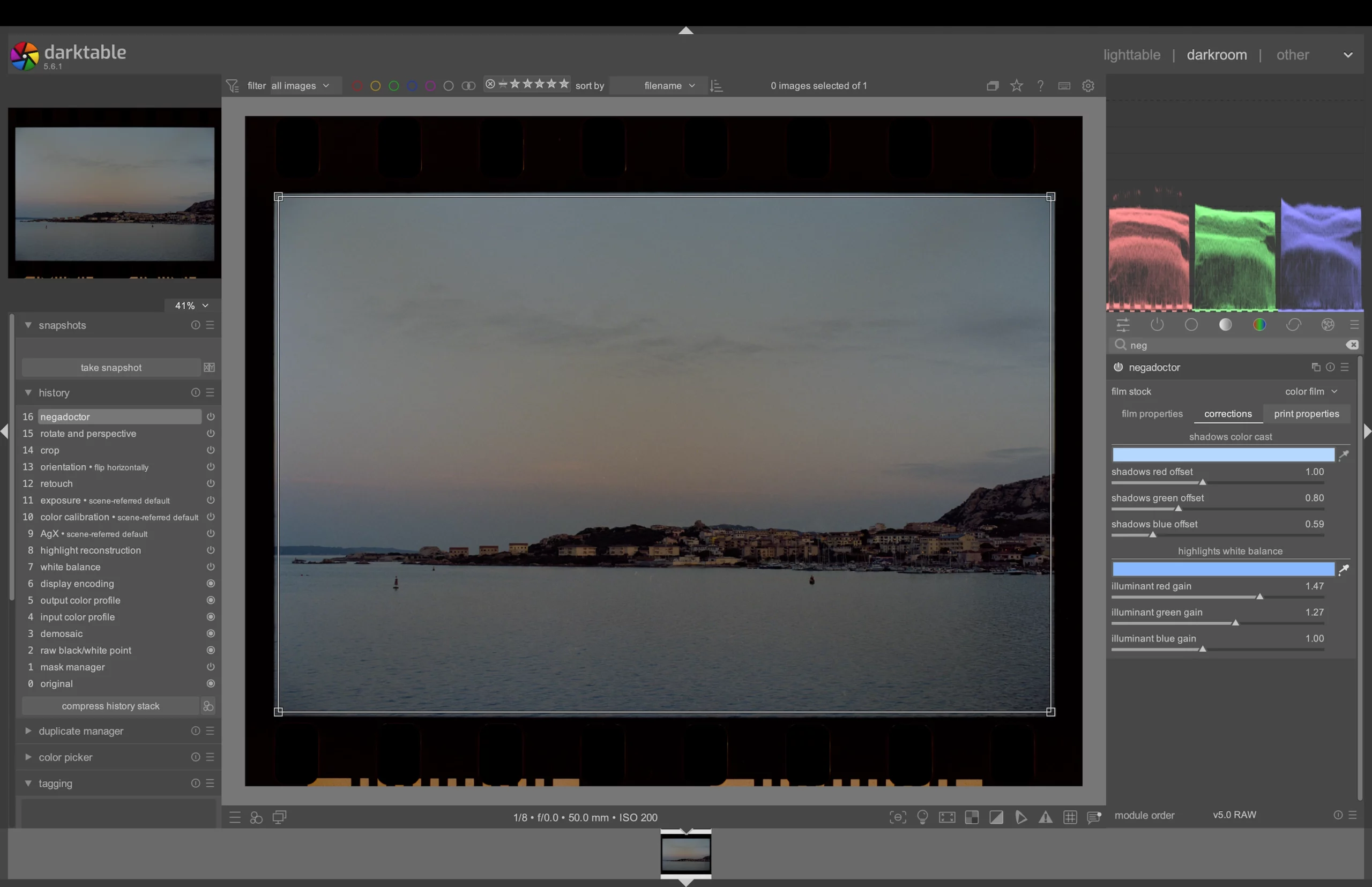
As you can see from the histogram in the upper right corner, the red, green, and blue channels are pretty consistent, unlike the initial inversion which had the blue cast I mentioned earlier.
The histogram really is what you should be looking at when dealing with the colour balance; all three channels must be of equal height for your colours to be accurate. This does not mean you can’t edit your image creatively afterwards, but it gives you a solid starting point.
The next step is to set the exposure.
To do this I used several modules together. AgX is already activated, its role is to compress the image into a format that fits a display’s capabilities while retaining the same perceptual qualities as the original file.
Its default settings dull the image: but in combination with the Exposure and Tone Equalizer modules, it allows you to exploit the full range of your file while making sure nothing gets clipped — typically the highlights and shadows.
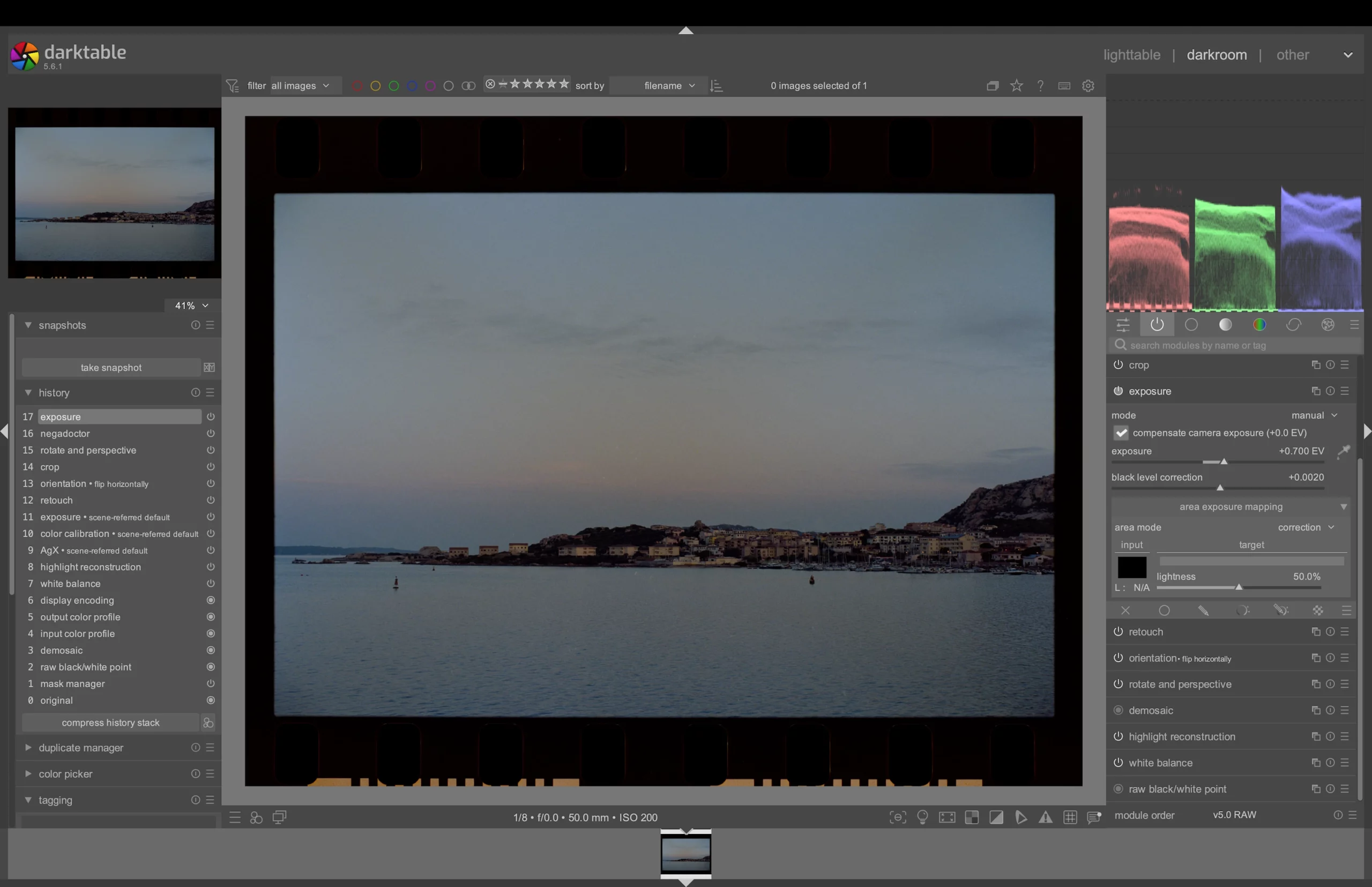
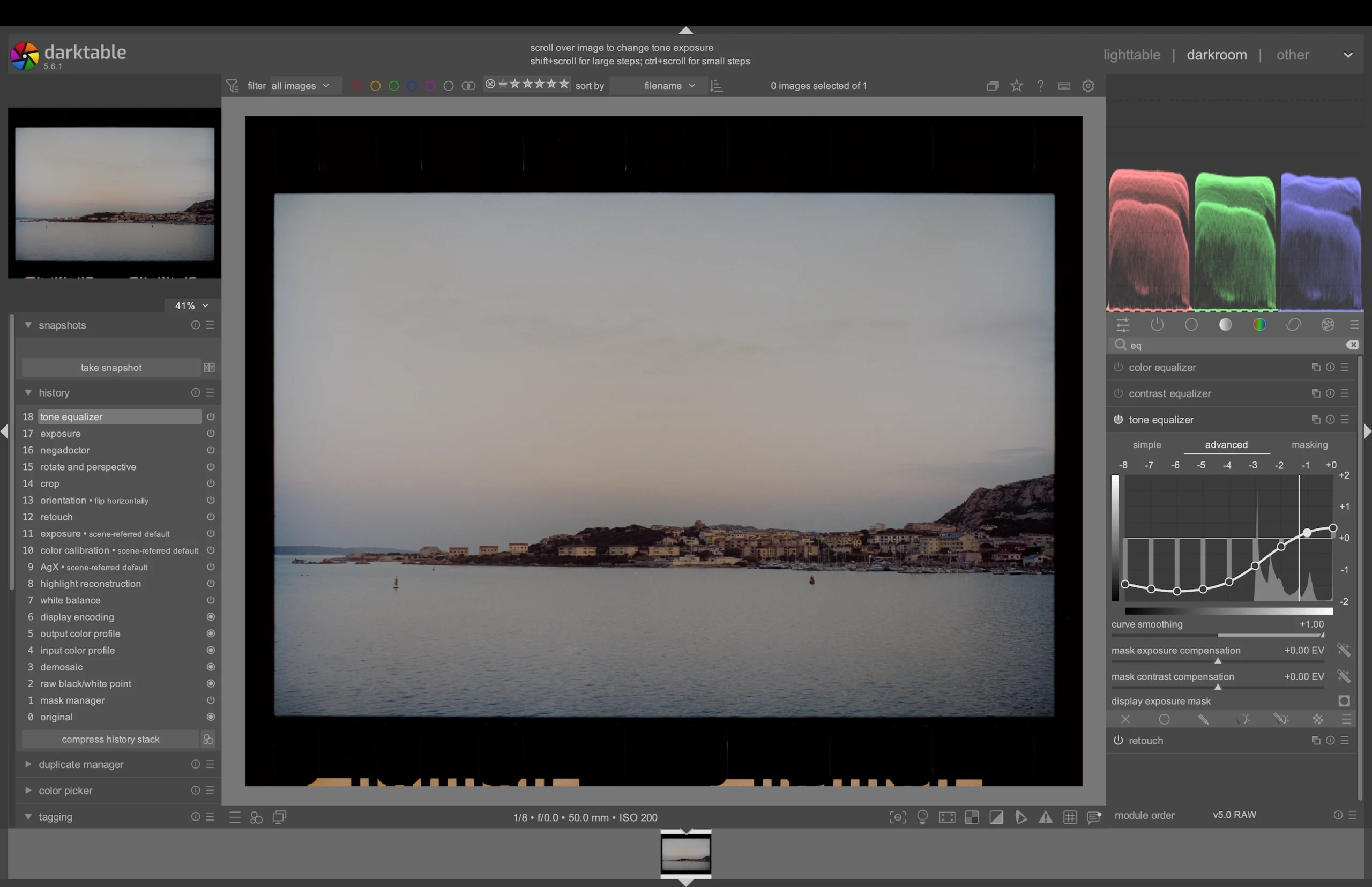
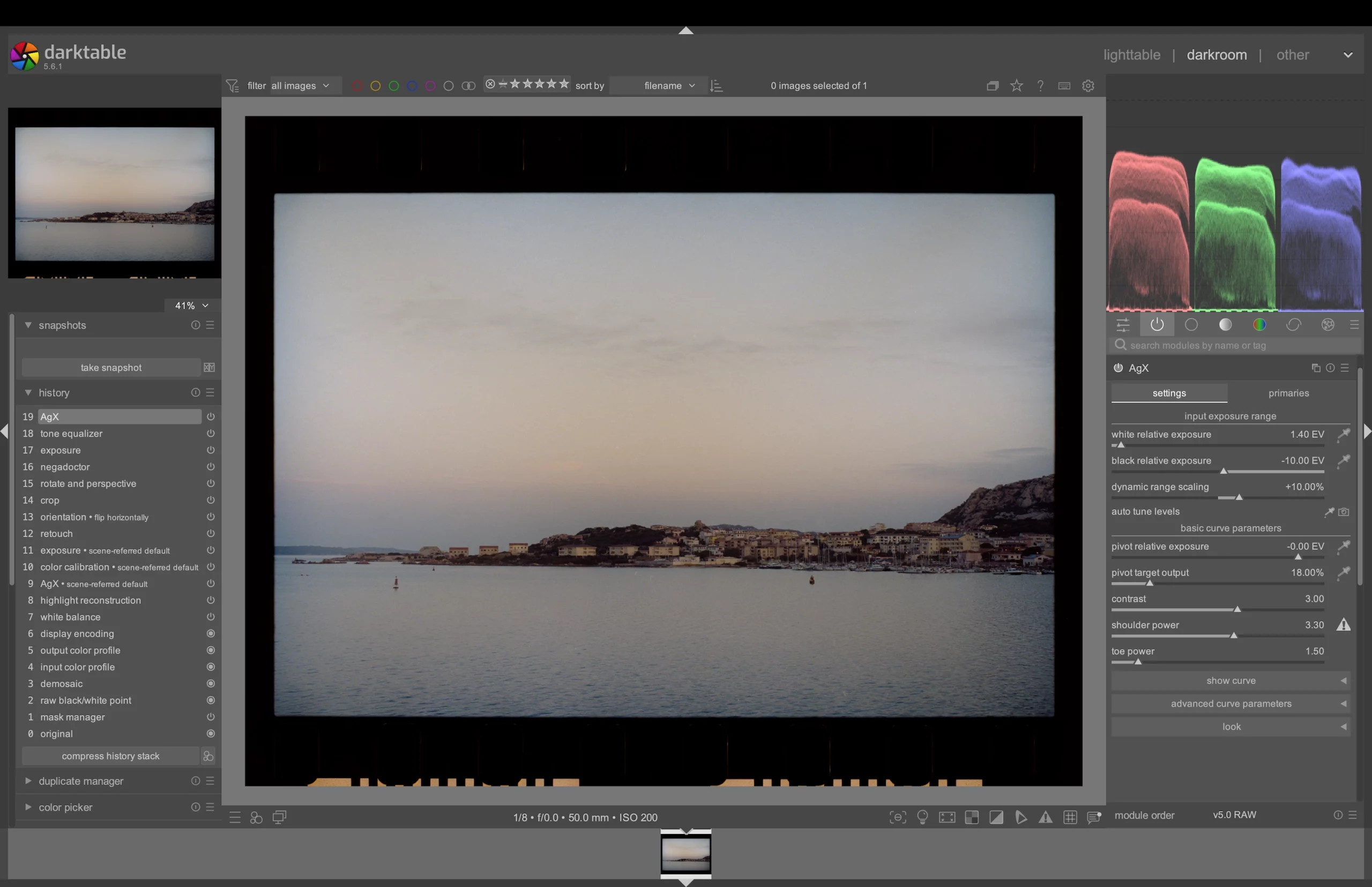
Before we get any further, there is something crucial to note when it comes to film inversion, colour balance, and exposure.
All of these steps work together.
The initial colour balance you get with the Negadoctor module is influenced by the exposure, whether you set it with the Exposure module, or with Tone Equalizer.
To put it simply: increasing the exposure adds red; decreasing the exposure adds blue.
That’s where the Tone Equalizer module becomes so crucial in the process. If you look closely at the curves in the second image above, you’ll notice the S shape. On the right (the curve is inverted, since we are working on the positive image, not the negative) I not darkened the shadows, I also made them bluer, while the midtowns and highlights on the left got a bump in exposure and, consequently, a bump in their red channel.
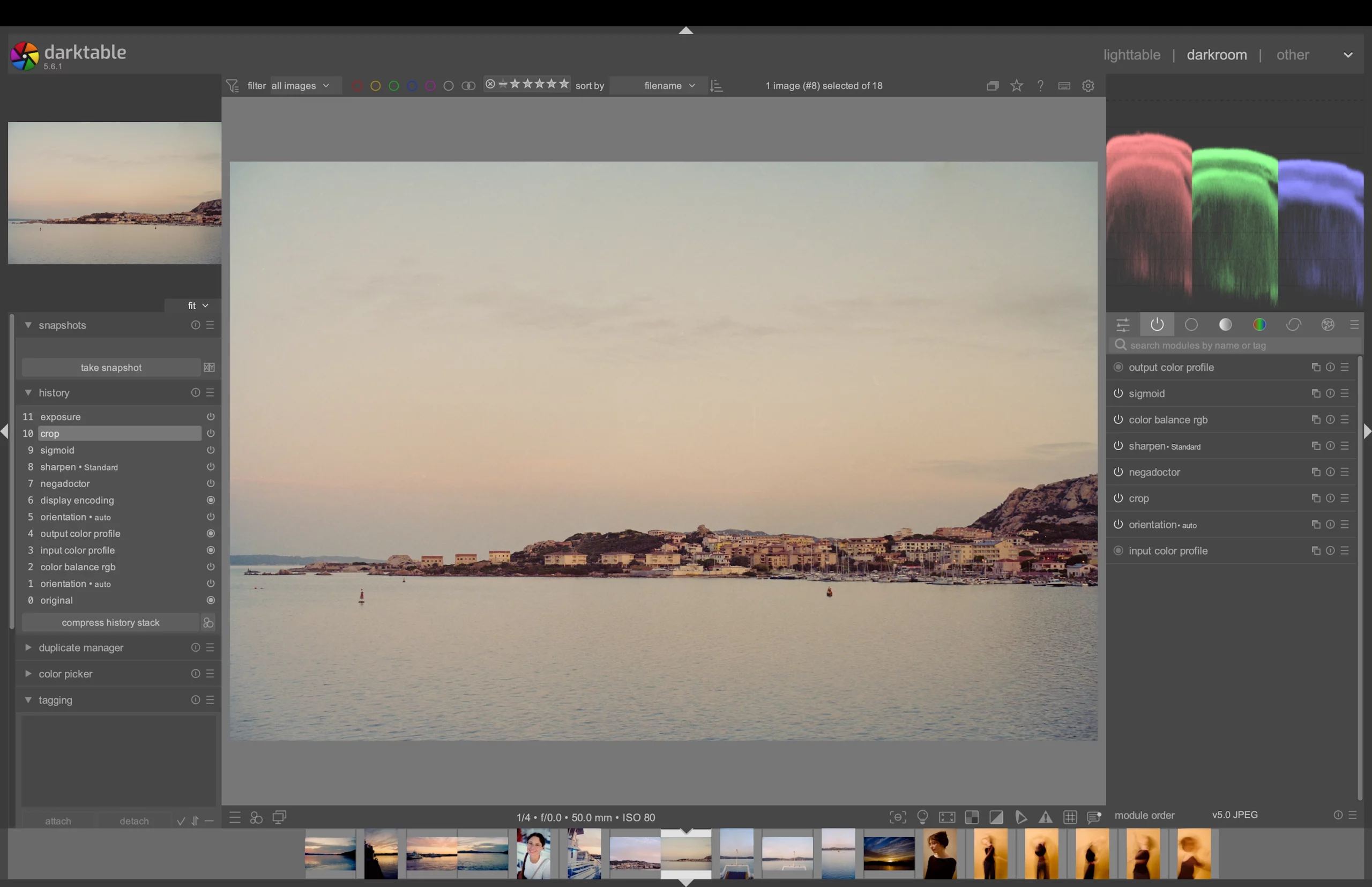
A scan and edit I did in 2025 of the same image. Note how much yellow and green there is compared to the re-scanned image.
It took me a while to figure out the best way to use this. When I first started working with Darktable, my scans had a very warm cast that was difficult to remove (see the image below), which is, I think, the reason why every one on the Internet seems to think Kodak’s Portra line is inherently warm. My guess is that most scans are simply lacking in the blue department due to the exposure being set improperly.
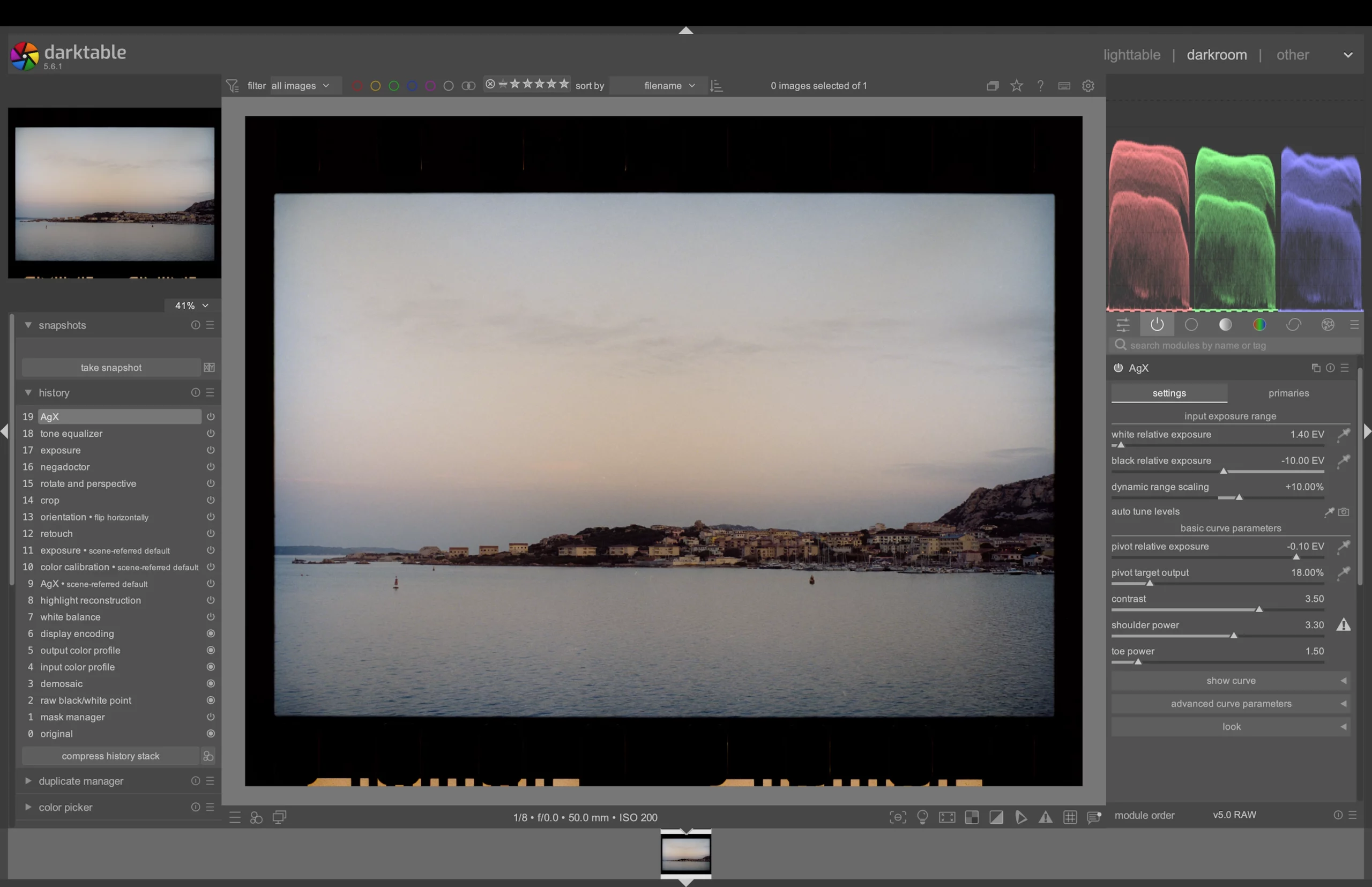
The next step regarding the exposure is done in the AgX module. First I bring up the highlights with the White Relative Exposure slider — there it’s important to pay attention not to clip anything — then I correct the overall exposure with Pivot Relative Exposure, and I finally set the contrast.
Pivot Relative Exposure will brighten your image without changing the colour balance. From now on, if your image looks too bright or dark, this is the tool you want to use.
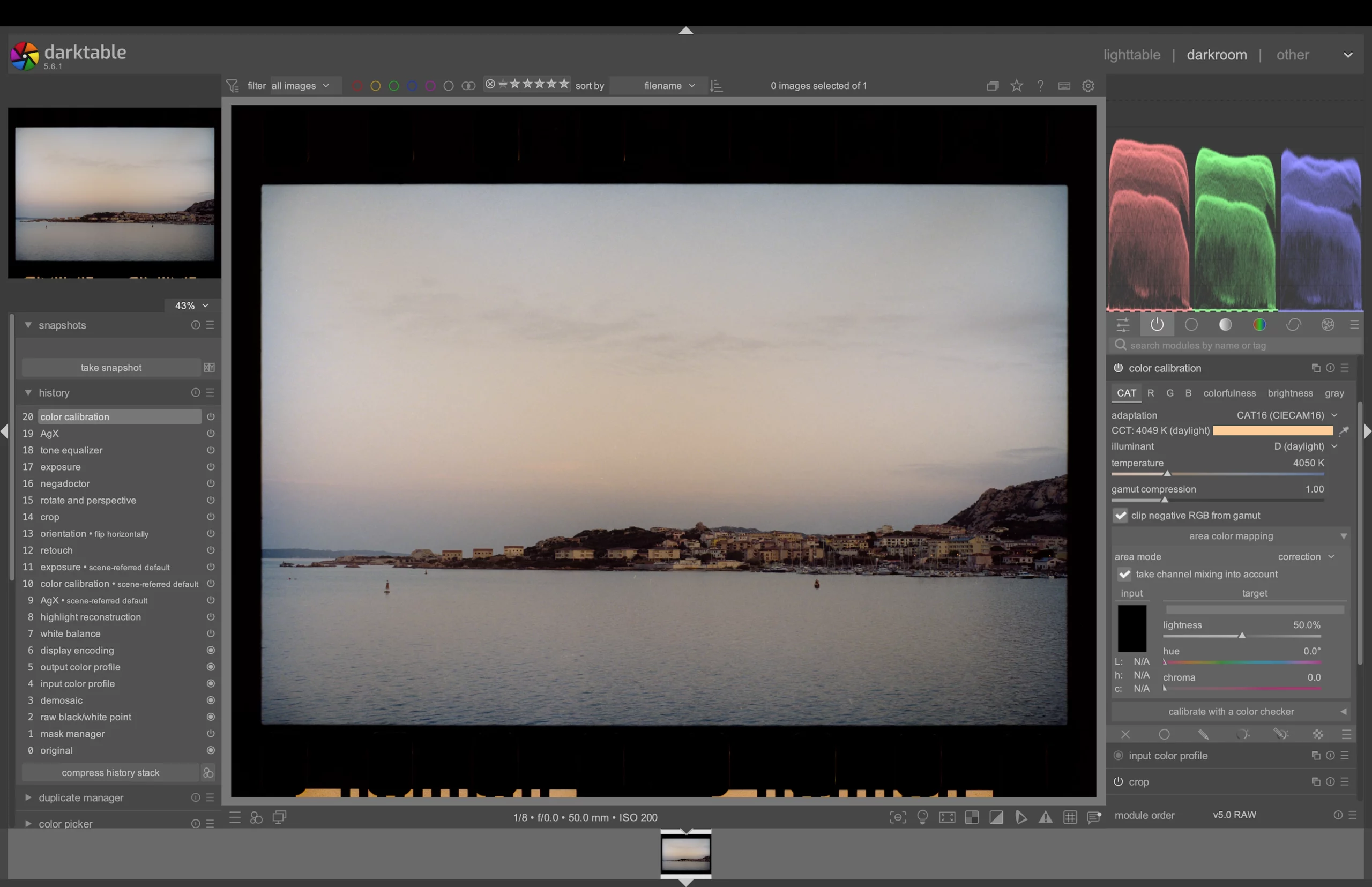
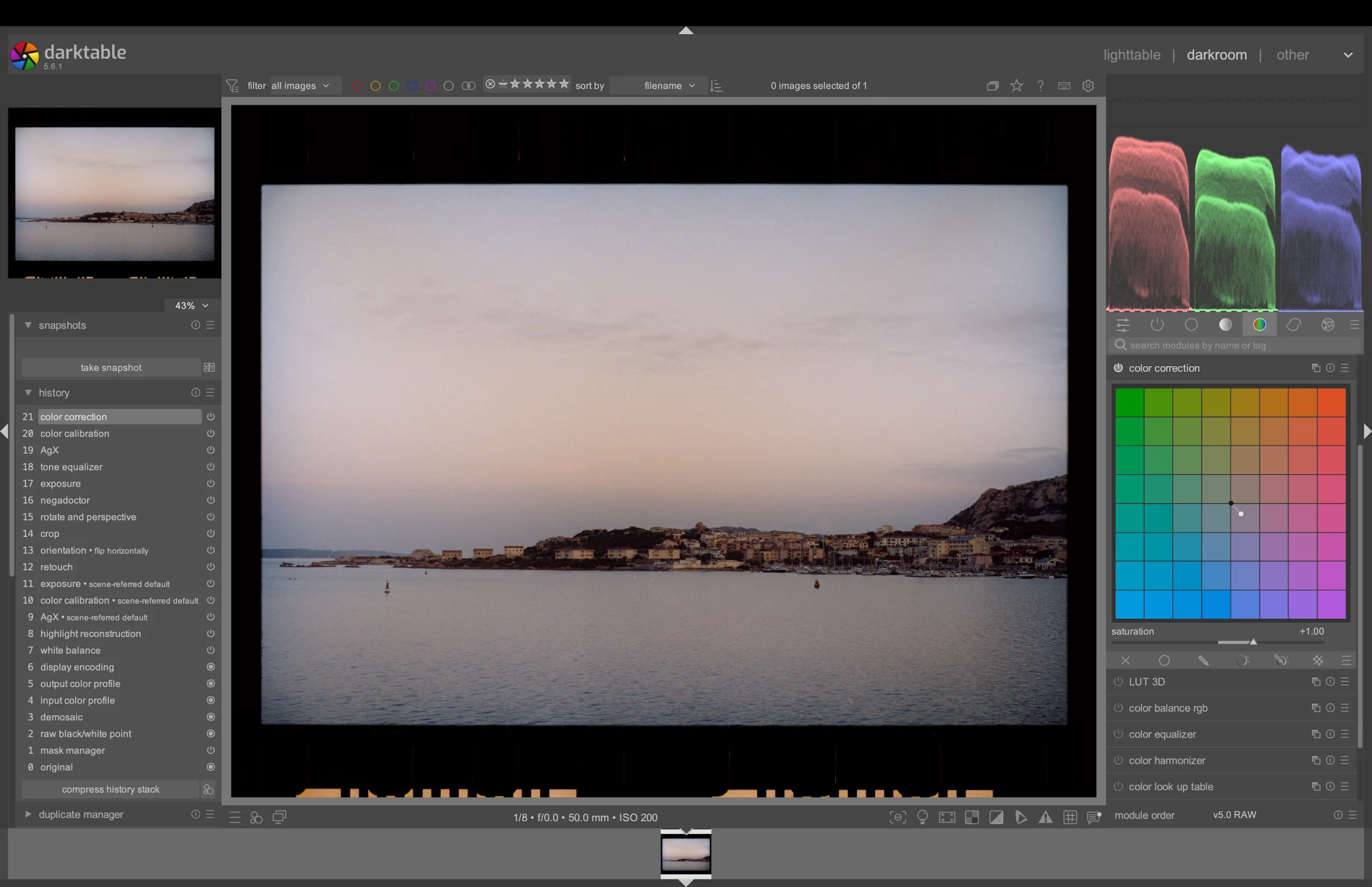
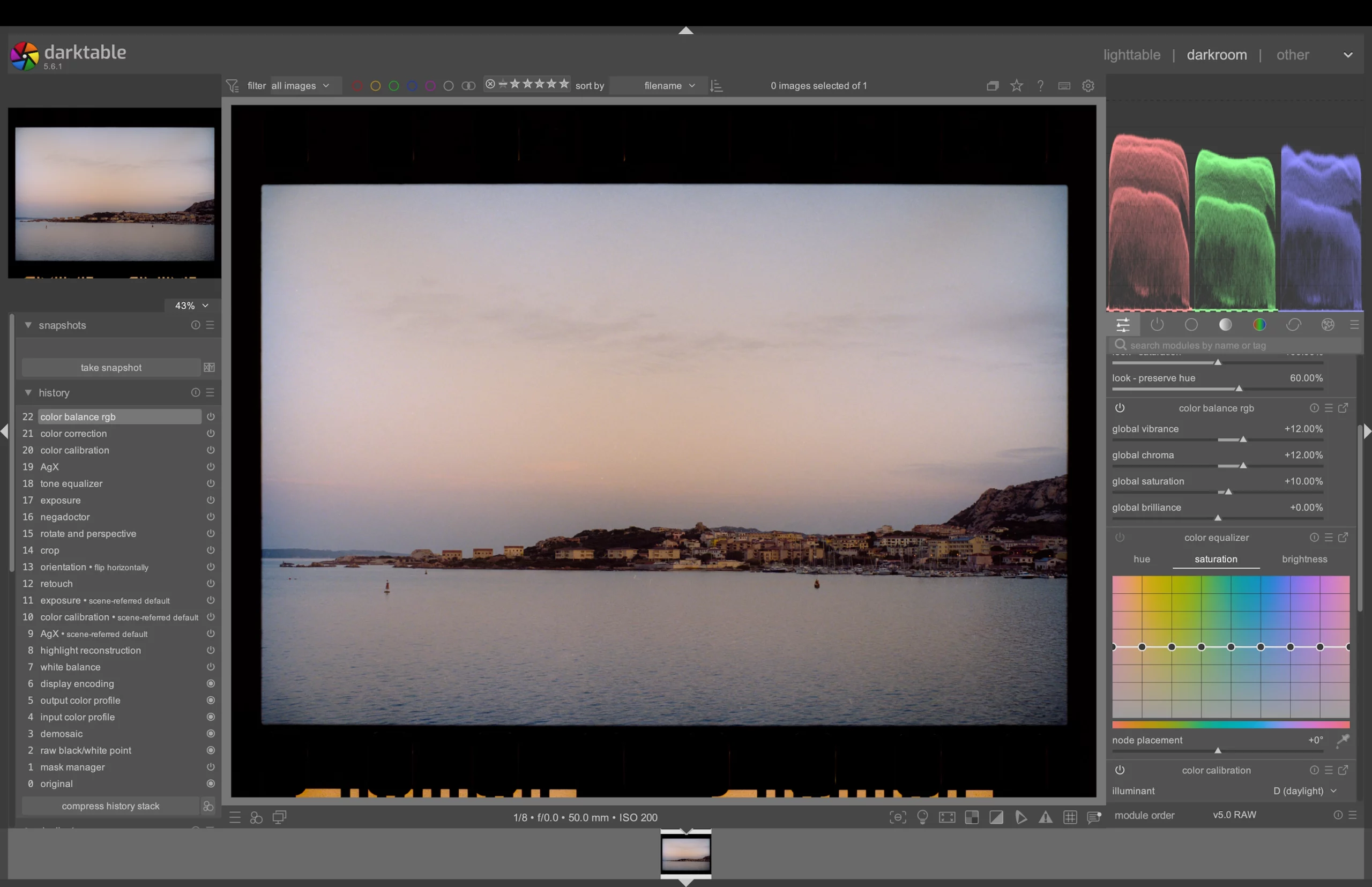
Now that we have set the colour balance and contrast, it’s time to have a look at the colours themselves. It’s a pretty straightforward process: I like to increase the saturation a touch, then do some minor colour corrections.
In this case, the overall image seemed a little dull and warm. It was shot just after dawn, at the very end of summer, and while it was pretty early, the light had more power than that.
And to finish, some minor touch-ups. This part is optional, depending on how close you like to stay to traditional darkroom processes.
I used to ban tools that took me too from the darkroom processes, but the more I learnt about darkroom techniques, the more I realised there was very little you couldn’t do; from unsharp masks to increase local contrast to split-toning and perspective correction, the possibilities were quite as many as on the computer — simply more expensive and time-consuming.
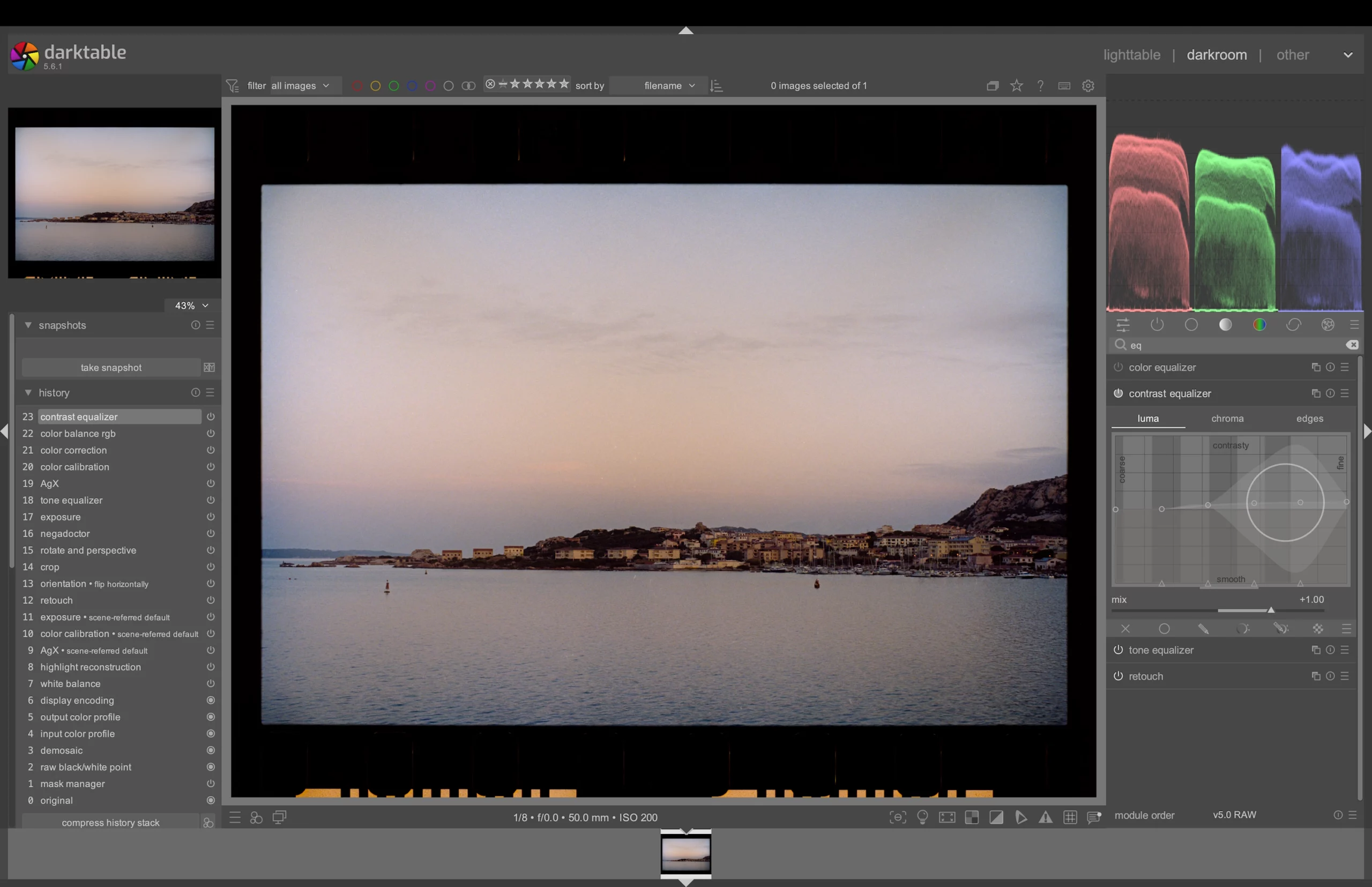
I like to increase contrast for fine details a little. It helps increase the impression of sharpness, and improves the readability of the photograph. For that I use the Contrast Equalizer module. The fine details are on the right side of the scale (first image).
The effect is pretty intense, so be careful not to push things too far.
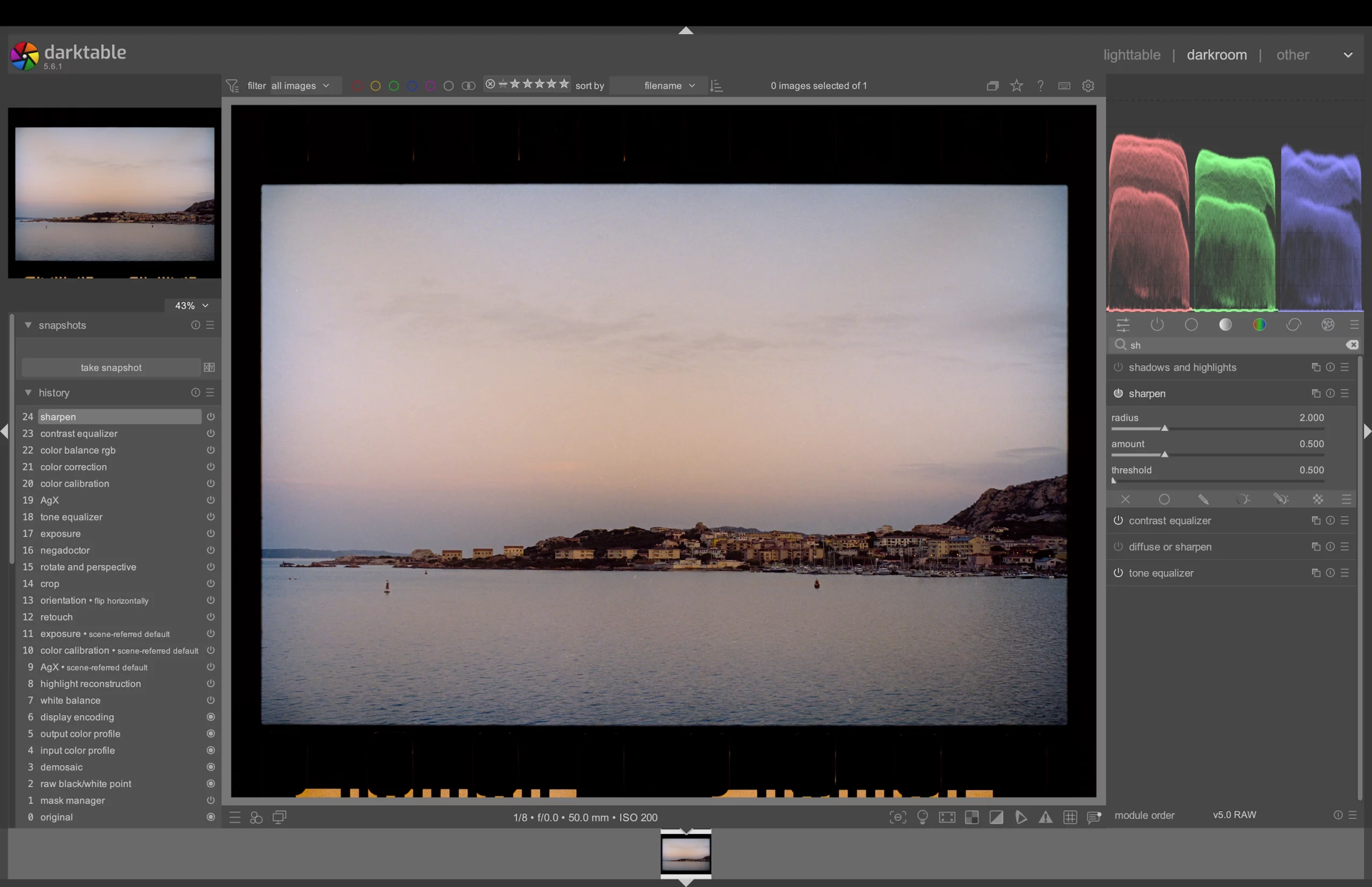
Then I add a touch of sharpness to the whole image with the Sharpen module. The idea is to make the film’s grain more readable. Again, it can get intense quickly. The idea is to increase it just enough to make the grain pop, but not enough for a halo to form around it.
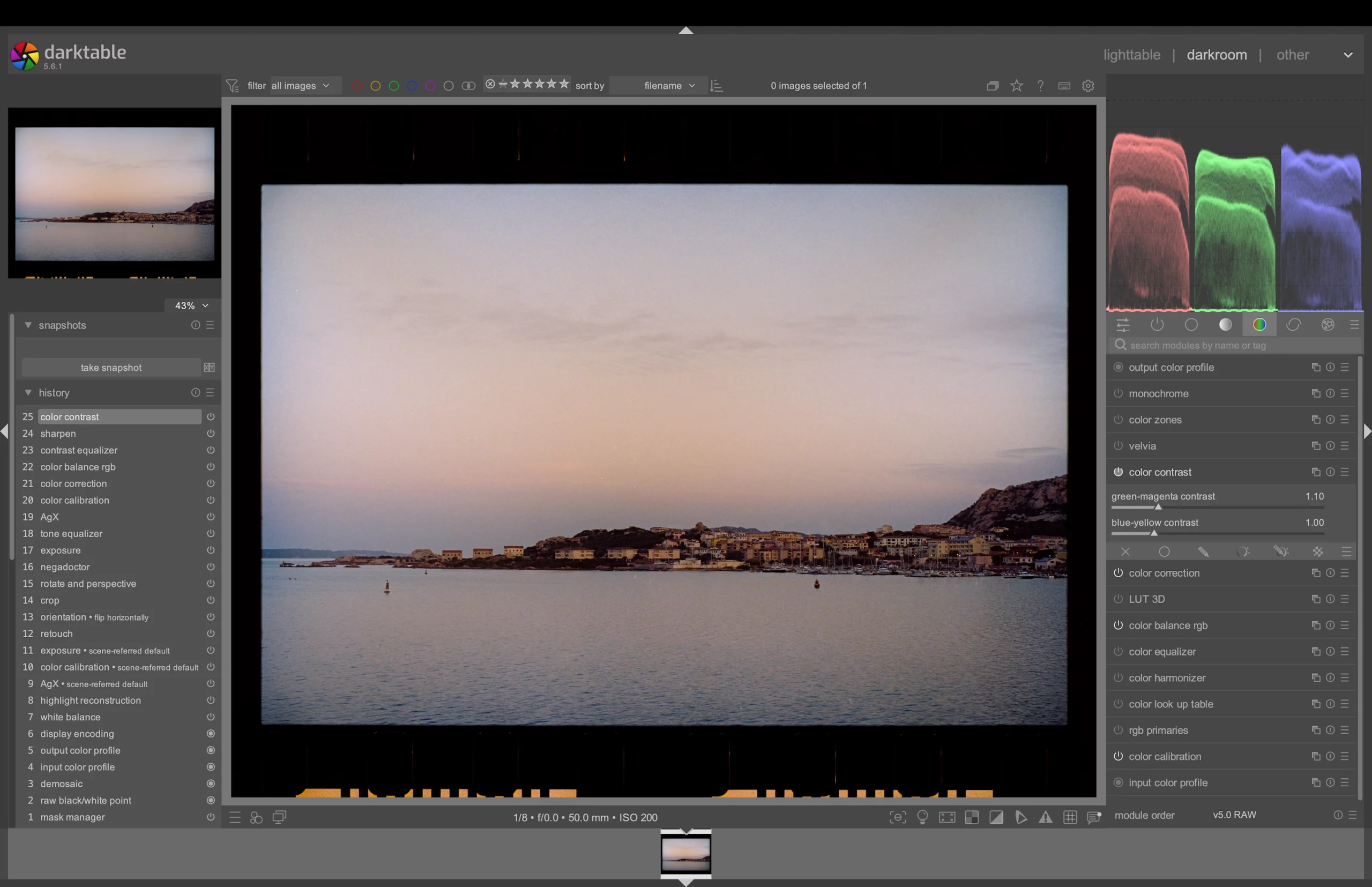
The last one is probably the only module I couldn’t reproduce in the darkroom. It’s called Color Contrast, and it helps increase or decrease the contrast between opposite colours: green and magenta on the one hand, blue and yellow on the other. In this case, I added 15% to the green and magenta slider.
Now is the time for final tweaks. In my case, and as you can see on the histogram, I’ve got plenty of room to increase the exposure and set the black point a touch lower.
This is all done with AgX: I set Pivot Relative Exposure to -0.70 EV, White Relative Exposure to 1.20, and Black Relative Exposure to -6.00 EV.
As I explained above, only the brightness changed, the colour balance remained exactly the same, unlike what I would have gotten with the Exposure or Tone Equalizer modules.

To summarise:
After inverting, start with the colour balance, then the contrast. Once your triad of modules AgX, Exposure and Tone Equalizer are set, you can move on to editing the colours and getting creative.
The final tweaks to the exposure and contrast are all done in the AgX module — you don’t need to fiddle with Exposure or Tone Equalizer after you set them.
—ML
Leave a Reply